Settings
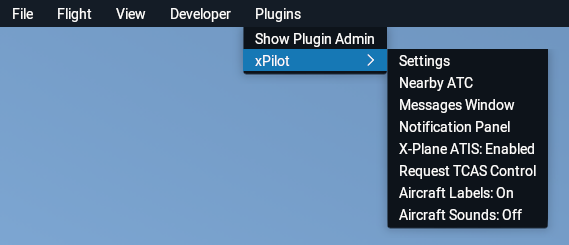
Open the xPilot plugin settings from the X-Plane menu: Plugins > xPilot > Settings.
General
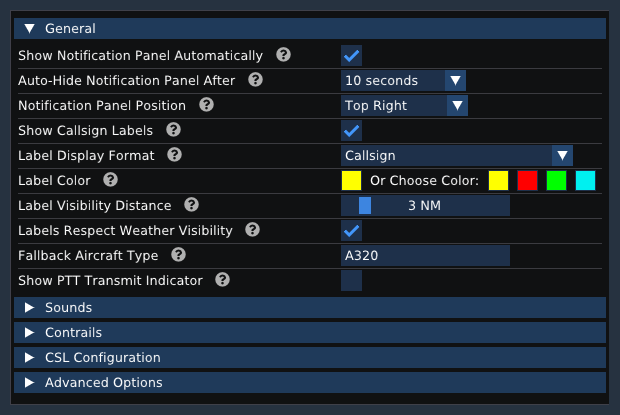
The General section controls labels, the notification panel, and a few core plugin display options.
-
Show Notification Panel Automatically
Shows the notification panel when a new radio text message is received. -
Auto-Hide Notification Panel After
Controls how long the notification panel remains visible before it closes automatically. -
Notification Panel Position
Sets where the notification panel appears in the X-Plane window. -
Show Callsign Labels
Displays labels above other aircraft in the simulator. -
Label Display Format
Controls what the label shows, such as the callsign or aircraft type. -
Label Color
Lets you choose a preset label color or select a custom one. -
Label Visibility Distance
Sets how far away aircraft labels remain visible. -
Labels Respect Weather Visibility
Hides labels when aircraft are outside the current visibility conditions. If disabled, labels can still appear even when the aircraft itself is obscured by weather. -
Fallback Aircraft Type
Sets the ICAO aircraft type xPilot should use if no better CSL model match can be found. -
Show PTT Transmit Indicator
Shows a green transmit indicator in X-Plane while you are holding Push to Talk.
Sounds
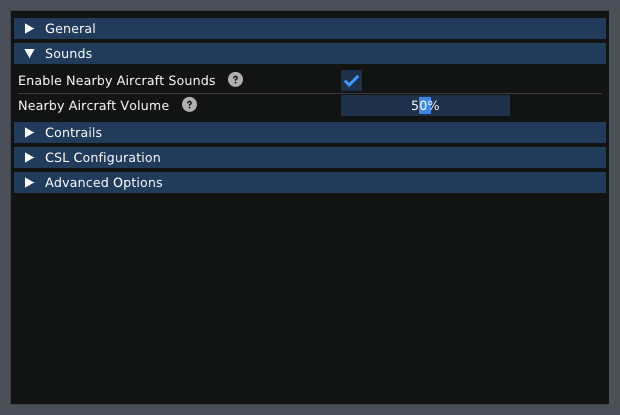
The Sounds section controls ambient aircraft sound playback for nearby traffic.
-
Enable Nearby Aircraft Sounds
Turns nearby aircraft engine sounds on or off. -
Nearby Aircraft Volume
Adjusts the volume of those nearby aircraft sounds.
Contrails
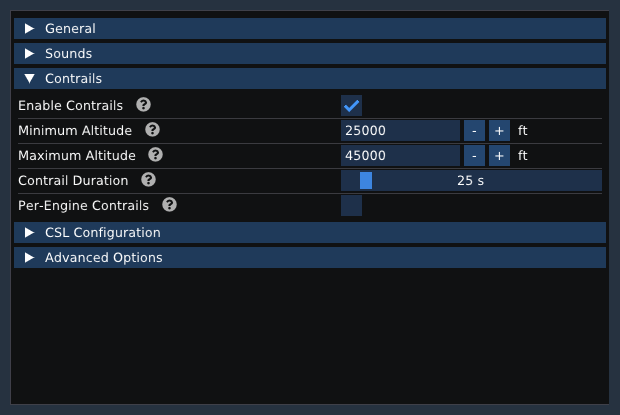
The Contrails section controls when and how contrails are rendered for other aircraft.
-
Enable Contrails
Enables contrails for jet aircraft. This may affect frame rate. -
Minimum Altitude
Sets the lowest altitude where contrails will appear. -
Maximum Altitude
Sets the highest altitude where contrails will appear. -
Contrail Duration
Controls how long each contrail segment remains visible. -
Per-Engine Contrails
Draws a separate contrail for each engine for a more detailed effect, which may affect performance.
CSL Configuration
xPilot does not require any special model matching rules, but you must have at least one CSL model set installed before other aircraft can be rendered correctly.
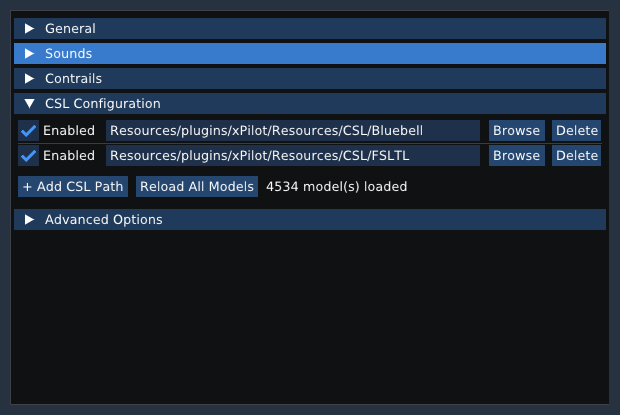
Use Add CSL Path to add another CSL model folder. Each enabled path is loaded by xPilot when X-Plane starts.
Use Browse to select a folder, Delete to remove a configured path, and Reload All Models to reload model definitions after making changes.
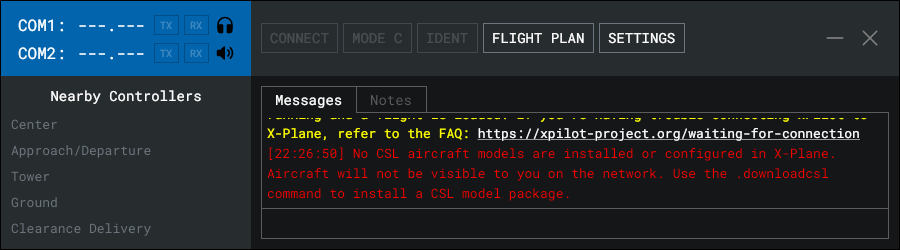
If xPilot cannot find any valid CSL models, the Connect button in the client will be disabled and an error will be shown in the main message area.
If you see this error, make sure at least one valid CSL path is enabled and points to an installed model set.
Advanced Options
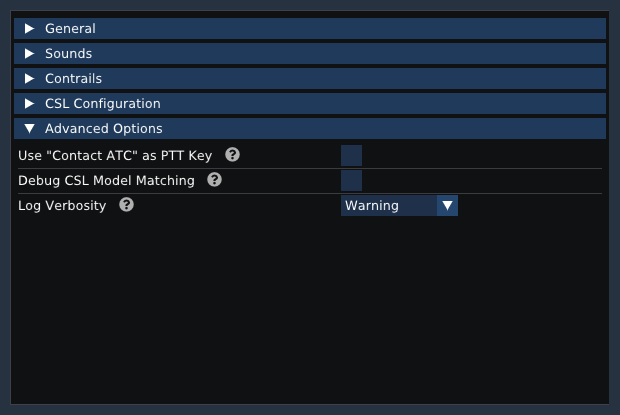
The Advanced Options section includes a few troubleshooting and compatibility settings.
-
Use “Contact ATC” as PTT Key
Makes xPilot use X-Plane’s built-in Contact ATC command as the Push to Talk input. -
Debug CSL Model Matching
Writes additional model matching information to the X-Plane log for troubleshooting. -
Log Verbosity
Controls how much information xPilot writes toLog.txt. Higher verbosity can be useful when diagnosing problems.