Messages Window
The Messages Window lets you send and receive radio text messages and private messages from inside X-Plane, without switching back to the xPilot client.
Open the window from the X-Plane menu: Plugins > xPilot > Messages Window.
You can also assign xPilot: Toggle Message Window to a keyboard key, joystick button, or switch. See Command Bindings for setup details.
If you bind the messages window to a keyboard key, the key may not close the window after the text input field has focus. Close the window manually, or bind the command to a joystick button or switch instead.
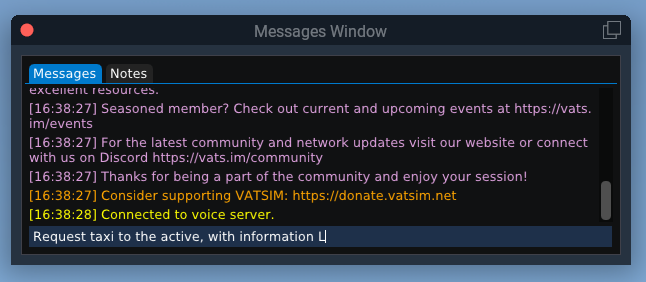
Radio Messages
To send a radio text message, open the Messages tab, type your message in the input field at the bottom of the window, and press Enter. xPilot sends the message on the COM radio currently selected for transmit.
Incoming radio messages addressed to you appear in white. Other incoming radio traffic appears in gray, and messages you send appear in cyan.
Notes
Use the Notes tab as a scratchpad while flying. Text entered in this tab is for your own reference and is not sent to the network or other users.
Private Messages
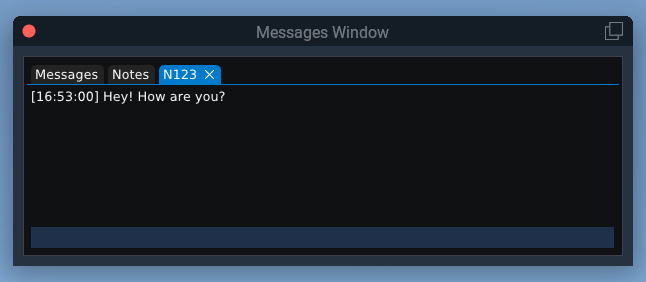
Private messages appear in separate tabs. To start a private chat, enter .chat CALLSIGN, replacing CALLSIGN with the other user’s callsign. A new tab opens for that conversation.
To reply in a private message tab, type your message in the input field at the bottom of the window and press Enter. To close a private message tab, click the blue X.
Dot Commands
Most xPilot dot commands can be entered in the Messages Window input field, the same way they are entered in the xPilot client.
For the full list of available commands, see Dot Commands.